Posts

How to unlock PDF

Image
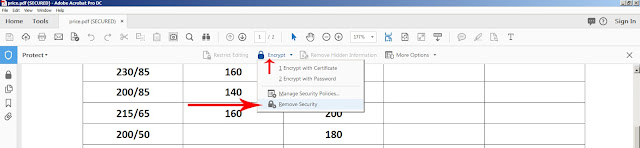
How to remove the security of you document? How to unlock pdf Open the file and go to encrypt and click remove security and type the password now your file is ready to open ,edit and print without password. If you don't know the password you can find third parties in internet. please watch the video .

How to lock pdf file to print and open (Encrypt with Password) and How to unlock

Image
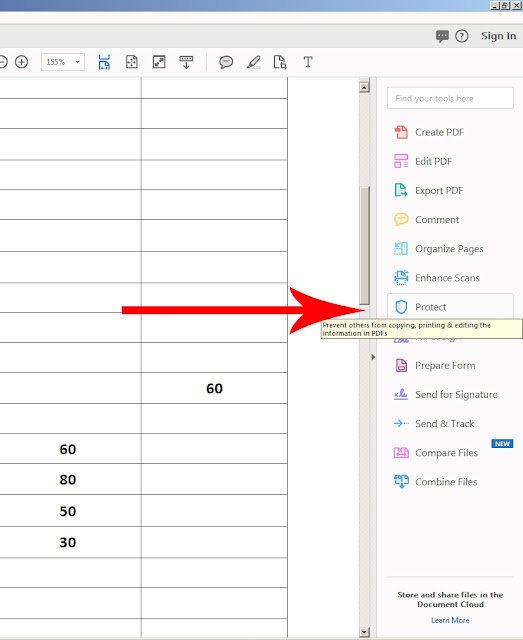
How to lock PDF file to open and print  (Encrypt with password) Sometimes we need protect our file with password to open or print. We can protect our pdf in a easy way 1. open you pdf in Acrobate  and go to PROTECT You can find "PROTECT" in right side of pdf or you can find in "TOOLS" option . 2. Go to ENCRYPT - ENCRYPT WITH PASSWORD   3. if you want protect only from open just click "REQUIRE A PASSWORD TO OPEN THE DOCUMENT" and type the password . OK When you click ok , needs to retype the password for confirm . so just retype the password .then OK next you will receive another message that "security setting will apply the document only after save. so please save the document.  Now your file needs password to open . 4.If you want restrict editing and printing of the document just click "Restrict editing and printing of the document" Printing allowed : None Change Allowed : None and type pa...

HOW TO PRINT ON LETTER HEAD PAPER

Image
Sometimes we needs to print on Letter head papers. May be we don't have much enough papers, so we can try to print it directly from your file. How ?? 1. Just scan you letter head paper to computer as JPEG. 2. Open your document in word and go to "WATERMARK" in "PAGE LAYOUT" menu and select "CUSTOM WATERMARK". 3. you will get a new window  >  click on "PICTURE WATERMARK" > select the scanned picture of you letter head > Scale to 100 % >  check / uncheck  "washout" > Apply and OK 4. you can adjust it with mouse or using arrow key after finish the adjust just close header and footer or just double click in center. check the video Thanks...... Team Let us share

How to activate staple option in RISO COMCOLOR 7150 ShareEmbedEmail

Image
How to activate staple option in  RISO COMCOLOR 7150  I am using RISO COMCOLOR 7150 . when i am trying to print there is no staple option in printer setting. How to Fix? > open printer properties (start menu- device and printers - you can find you printer) > Go to "SECURITY" tab there allow all the permissions  > go to next tab "environment"    then click on "Get printer info" If you insert the staple in printer there you can see offset stapler as "installed" then apply and ok now you can get staple option in printer setting check my video  Thanks  Team Let us share

HOW TO ADD ADDRESS BOOK TO YOUR PRINTER

Image
HOW TO ADD ADDRESS BOOK TO YOUR PRINTER ? There is two steps we need First - share folder Two - share with printer Share folder To add address book in you printer we need to create a folder . Then go to folder properties - second menu - "SHARING" in sharing select "SHARE" in "SHARE" select "EVERYONE" then "ADD" in permission level select "READ/WRITE" then "SHARE" - "DONE" then click  "ADVANCE SHARING" in advance sharing mark "SHARE THIS FOLDER" then select "PERMISSION" select "FULL CONTROL " then "APPLY- OK" Now our folder is shared Next we want to share it with printer we want to find the IP address of our printer How to find IP of our printer ? go to device and printer , then select your printer - in"option " open" printer properties" go to second menu "PORT" in port you can find the I...

How to Print multiple pages in one paper - MS Publisher

Image
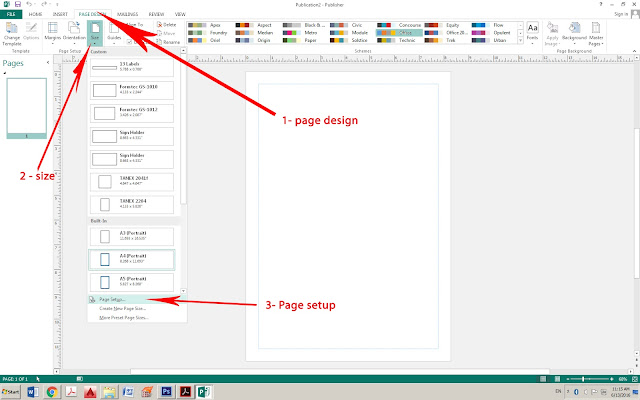
MS Publisher is a very useful Application. when we are using the Photoshop or CorelDraw or another editing software , if we need multiple copies or labels we needs to copy past and arrange one by one.  But if we are using the MS Publisher we want make only one and we can make it multiple one time. cool.   we can see, i want a photo in 5/5 cm size in one page full. open the publisher - Go to Page Design - Size - Page setup In page setup Put the width and height select multiple from layout type Target paper size make A4 ok Then insert the Picture , and print Select printer Multiple copies per sheet Click layout option and arrange the margin then print Cool right ? Just like this if you want business cards or other labels you can use it very easily   and there is also lot of featured and built in templates. Thank for watching  Team - Let us share
Print two side business card

Image
How to print two side business card? When we are trying to print two sided cards , sometimes we face too much problems. maybe print not come the same portion and same size. Here i will show you how to print two sided business card  . 1. Design the card in Photoshop.     (business card size 9/5) 2. Arrange  first page and second page separate in new A4 size. 3. Crop the page and save as pdf. 4. Open acrobat and combine the two files  5. Open the file and Print ite in actual size and two side     (Finishing - Two side ) Now your business card is ready.  sharp and smooth size . Print and cut Thanks for watching Let us share......

How to delete all the numbers form the word

Image
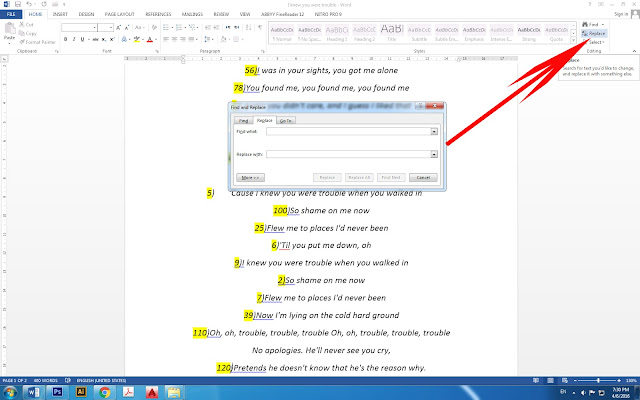
How to remove every single numbers from MS Word document ? If you are trying to remove every single numbers appear in MS Word and leaving only texts here a small tip 1. Open the document 2. In Home - Replace -  3. in the "find what" box type the number (eg=0) 4. leave the" replace with" box empty 5. click Replace all    (Repeat with numbers 0-9 and ) Now your problem is solved Thank for watching Let us share

How to keep the clarity of object in Photoshop

Image
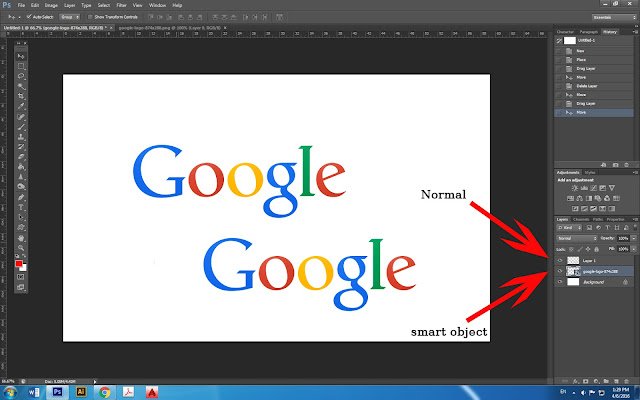
How to keep the clarity of object in Photoshop? W hen we are using the Photoshop, may be we need to reduce of enlarge the size of image. There will come problem of the clarity, Here we can use a cool option of  Photoshop - SMART OBJECT  N ormal images once you make small , then if you want to make it big it will not come clearly But when you use smart object you can use it small or big in same clarity. we can  use smart object two ways:   1 - G o to file and Place image 2- open image - Layers - option - convert to smart object  Now the object smart object. Then if you want come to normal image because of edit or erase you want to Rasterize layer (layers - option - rasterize layer) Thanks for watching... Let us share.  

How to make image in center of the page in photoshop

Image
How to make image in center of the page in Photoshop? 1 - Open Photoshop  2- insert page and image 3- Select layer with background (if you have more images merge the images and select background) (Merge = cntrl + E ) Select = using shift ) 4 - click Align vertical center 5 - click Align Horizontal center That is it, now your image is center of the page. Thanks for watching  Let us share